Manual for the Airmine Pollen app
Table of Contents
The manual is only available in English for now.
About this manual: We strive to keep the manual updated, but there may be smaller differences between the app and what is described here. Please also note that functionality and design may vary between different versions of the app. (You can see which app version you have installed under Settings in the app, just scroll down to the bottom.)
The free app version
We offer pollen risk forecasts for Europe*, USA**, South Africa, Australia (excl. Tasmania), Indonesia (Java &Bali), Brazil***, Paraguay, Uruguay and the Buenos Aires region in Argentina. Free users have access to pollen risk forecasts for today and tomorrow, and to most pollen species. Free users can also see pollen exposure for selected routes in the map. We may change what is available in the free version.
*EU27, UK, Norway, Switzerland, Liechtenstein and Balkan
**The contiguous United States
*** Central, Northeast, Southeast and South Brazil
Pollen Premium subscription
What it offers
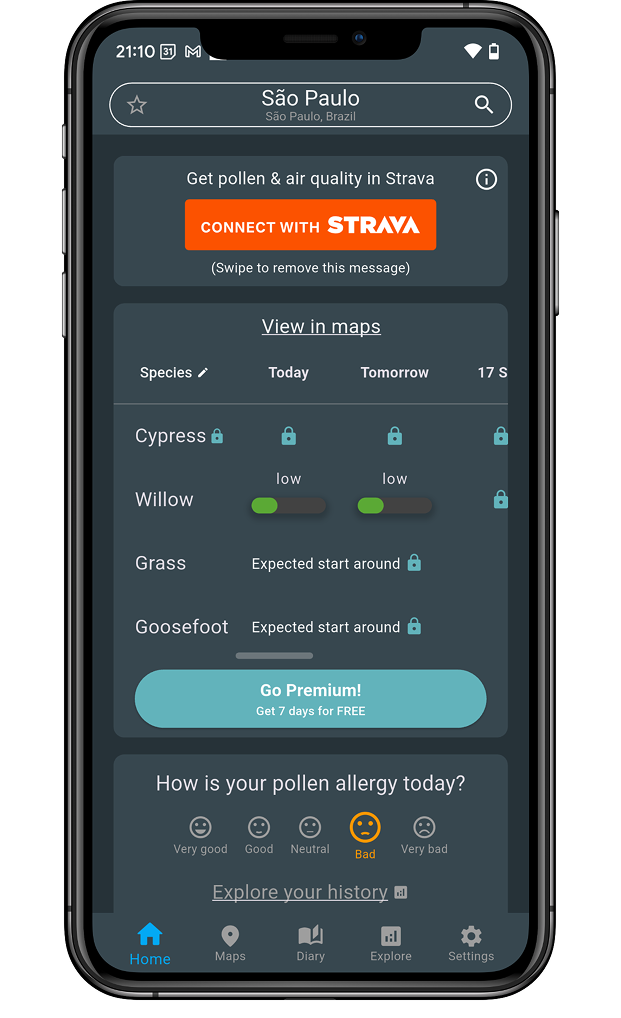
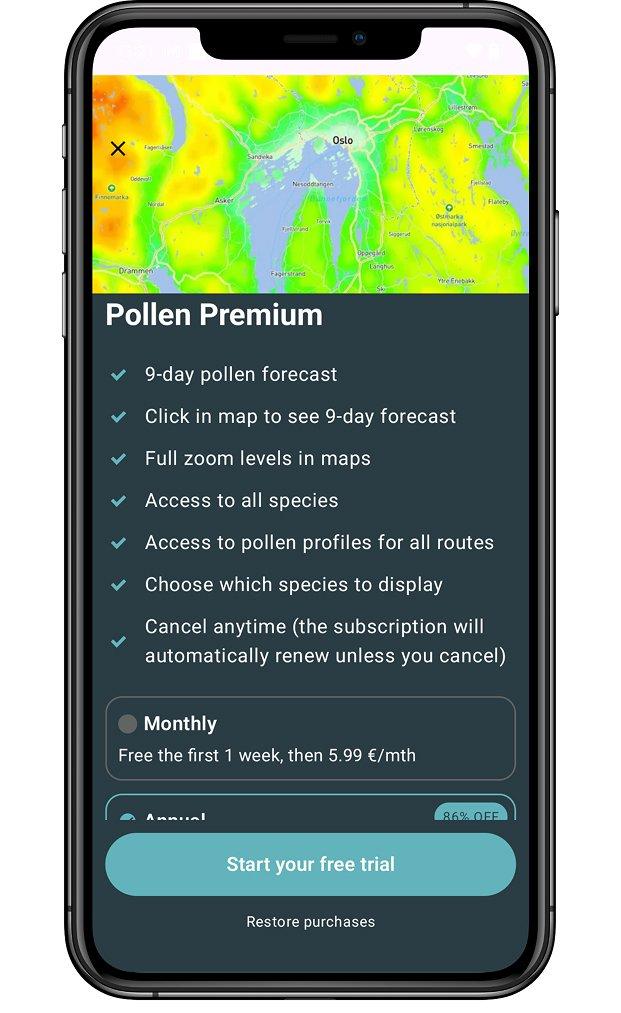
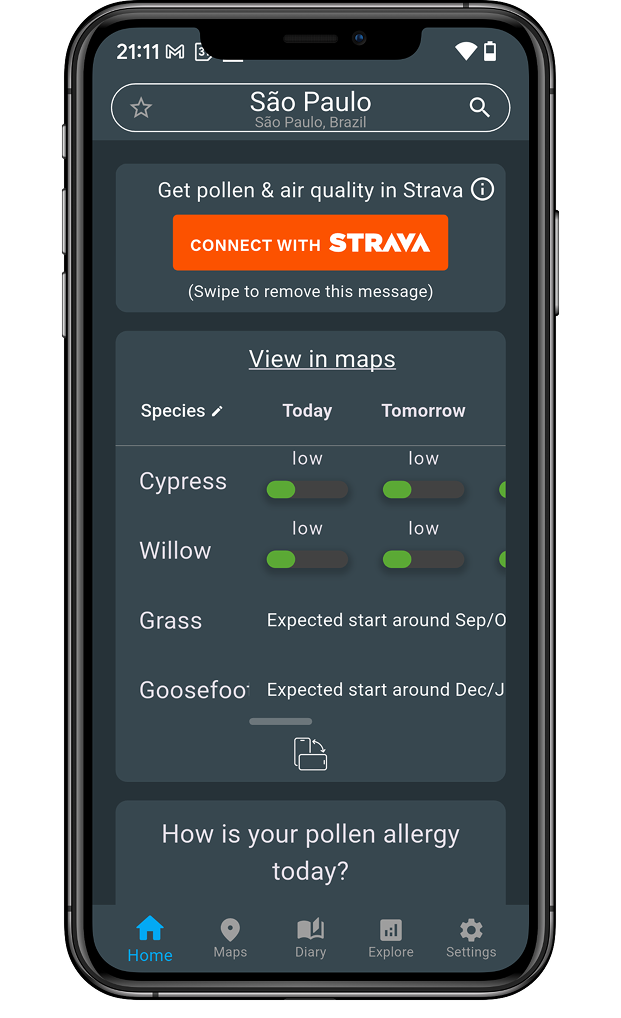
The Pollen Premium subscription gives access to 9-day forecasts, as well as estimated season start for different pollen types. You also get access to all pollen species and can edit the species list on the Home screen. In the pollen risk maps, you can zoom to a detailed level, and you can see all routes with pollen exposure and the route in the maps. We may add content and features to the premium subscription.
How to buy
You buy the Premium subscription from the Home screen: Click on the big button that says “Go Premium”, choose between monthly or yearly subscription and click the Subscribe-button. Then you proceed through the normal flow for AppStore purchases (iPhone) or Google Play purchases (Android). You should receive an email confirmation of your purchase. After you have bought, you can access all premium content.
Please note that prices and availability may vary from country to country. We currently offer the Premium subscription to users in Europe*, USA, Australia, South Africa, Indonesia, Brasil, Paraguay, Argentina and Uruguay.
*EU27, UK, Norway, Switzerland, Liechtenstein and the Balkan countries
Manage your subscription
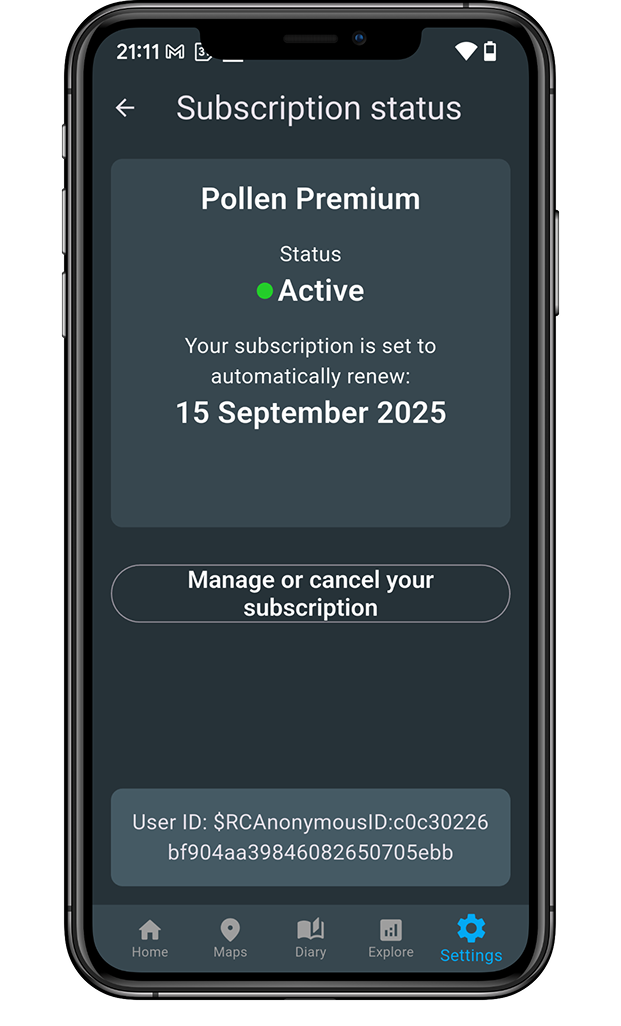
We use AppStore and Google Play to handle billing and subscription management. From Settings-Subscriptions in the Airmine Pollen app, you will see your subscription status, next renewal date and a link to where you can cancel and manage your subscription.
You will also see a RC id at the bottom of this screen, this is your reference number. In case you contact us for support, we will need you to provide this id.
Cancel subscriptions
Subscriptions renew automatically after the billing period, unless you choose to cancel the subscription. To cancel, you can follow the link from Settings-Subscriptions in the Airmine Pollen app or go directly to subscription management on your phone.
iPhone users, please see this link for further guidance:
https://support.apple.com/en-us/118428
Android users, please see this link for further guidance: https://support.google.com/googleplay/answer/7018481?hl=en&co=GENIE.Platform%3DAndroid
Transfer subscriptions between devices
The Pollen Premium subscription is linked to the account where you purchased the subscription (your AppleID or GoogleID). You may transfer the subscription between different devices using the same account and the same platform (iOS or Android).
Restore a subscription
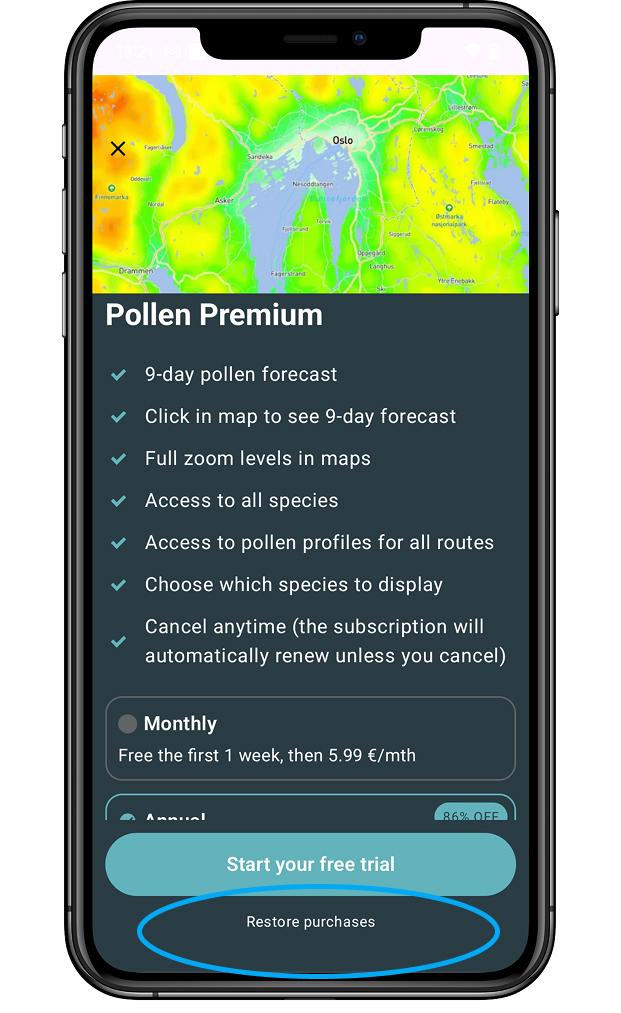
Restoring purchases is a mechanism by which you can restore your in-app purchases, reactivating any content that had previously been purchased from the same store account (Apple or Google). You find the restore-link on the Paywall (click on Go Premium on Home).
Intro screens and settings
Choosing your region
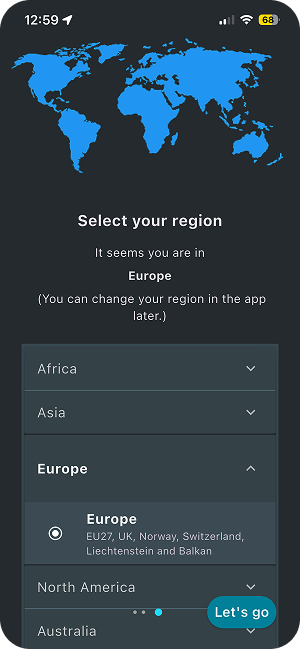
Airmine does not cover the whole world (yet), we offer pollen risk forecasts for a selection of geographical areas. These are grouped into regions in the app. When you choose a region, you will see the pollen risk forecast for this area.
When you download the app, we try to find out where you are located. If you are within one of the areas we cover, this region will automatically be suggested. You can change your region during the setup process or anytime later in the Settings screen.
Allowing notifications?
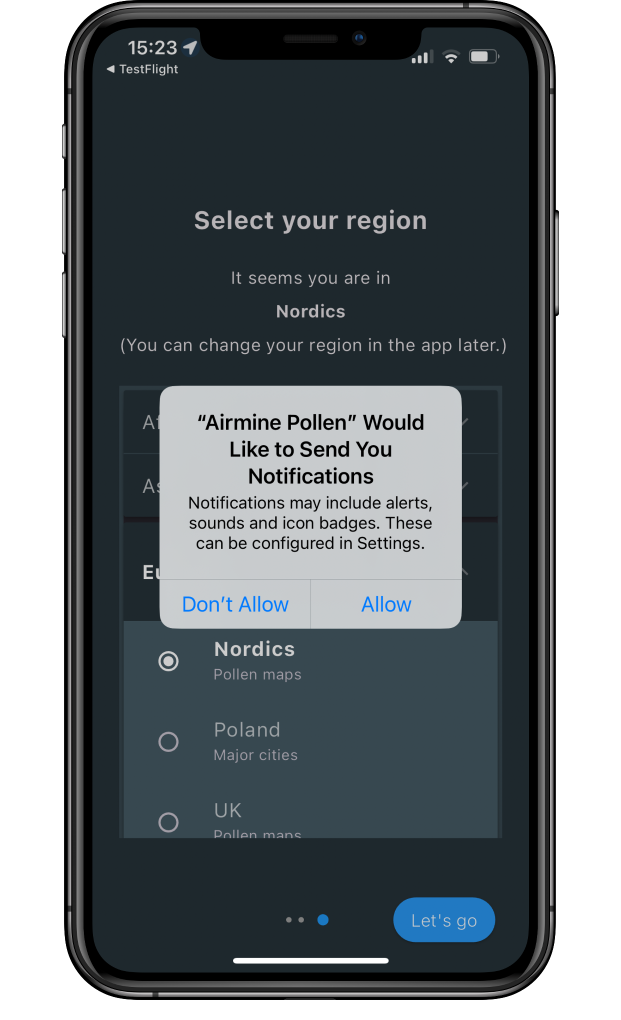
If you allow notifications, you can get reminders and daily notifications on pollen risk.
You can adjust the notifications in the Settings screen in the app. You can turn the notifications on or off and select which ones you want to receive.
Allowing location services?
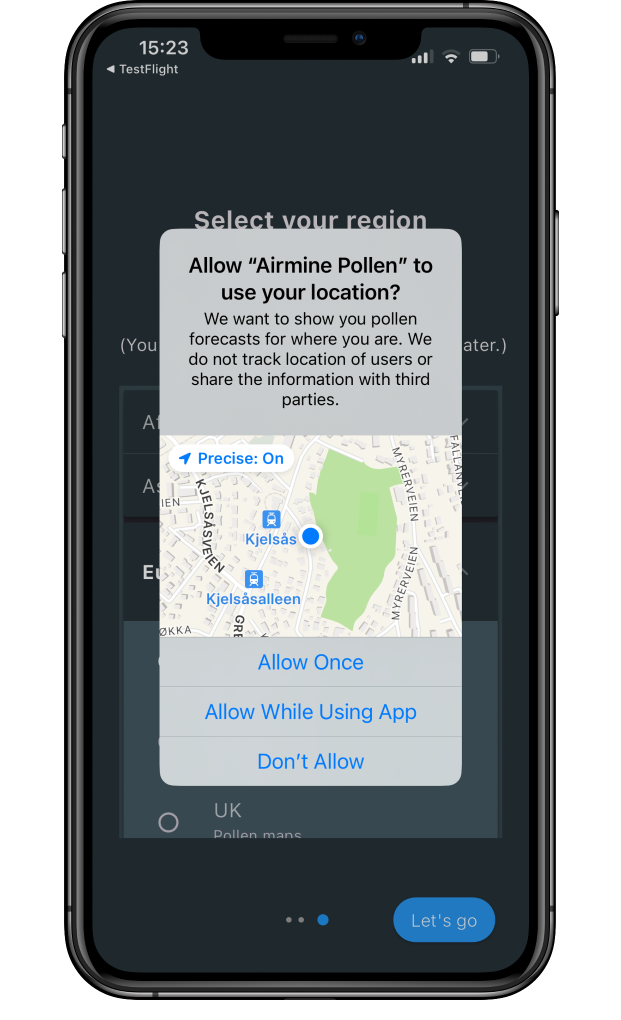
We suggest you allow the app to use location services when the app is in use. This gives you pollen risk forecasts for your current location. If you log your pollen allergy symptoms in the app, enabling location services will also let the app store the pollen values for your location when you log.
You can adjust and turn on and off location services in your phone’s settings.
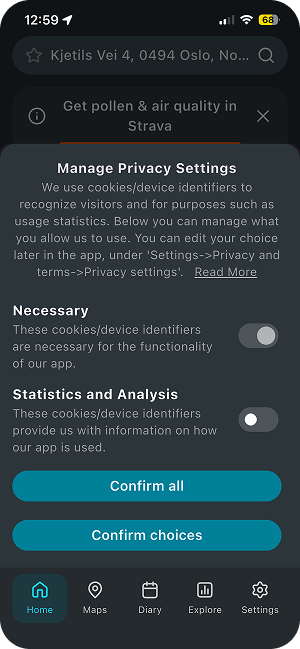
Manage privacy settings
We ask for permission to use device identifiers for statistics and analysis. You can edit your choice later in the app, in Settings->Privacy and terms->Privacy settings.
Home screen
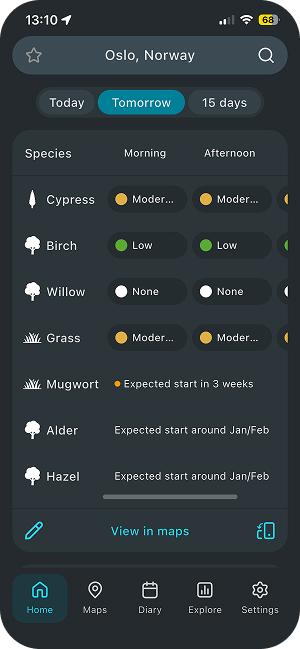
This is where you see the pollen risk for for different locations. For most regions we provide 15-day forecasts, with levels for morning-afternoon-evening (some regions currently have a 9-day daily forecast).
Pollen risk levels
We have five levels of pollen risk, marked with a colour and text on the Home screen. The Airmine Pollen app gives you pollen risk levels, meaning the chance of experiencing f.ex. High pollen levels.
Pollen levels will vary locally, depending on vegetation, local weather and when the plants release their pollen. It is also important to understand that our models give a prognosis for risk levels ahead of time, a bit like the weather forecast. We do our best to give you precise information, but there will always be uncertainties in our risk forecasts.
For species that are not in season, we provide an estimated start of season (Premium subscribers only).
Colour | Level | Description |
|---|---|---|
 | None | No pollen risk – typically when a species is not in pollen season or has very low risk |
 | Low | Low pollen risk. There may be some pollen in the area. |
 | Moderate | Risk for medium levels of pollen. |
 | High | Risk for high levels of pollen. |
 | Very high | Peak season, very high pollen risk. |
Location when you open the app
As default, we show forecasts for your current location (provided you have turned on location services and are within one of the regions we cover). If you are outside our covered areas or have turned location services off, we will propose a default location.
Search
You can search for pollen risk for places (addresses, cities etc) within the region you have selected, f.ex. For locations in the UK.
Mark favourite locations
You can mark places you want pollen forecasts for with a star. You can do this from Home and from Maps (in the search field). Your marked locations show up when you click in the search field. You can click on the locations to quickly see the forecast for that place. To remove a location, just click on the star next to it.
Maps
You will see the Map menu item on the bottom navigation bar. The maps show pollen risk, from white (no pollen) to red (very high pollen risk). You can zoom and pan in the map.
You can select species and see pollen risk for today and tomorrow.
See forecast in the map
To see pollen forecast for a given location, you can either long-press in the map, or search for the location in the search field. The pollen forecast will be displayed in a map drawer. To remove the drawer, drag it to the bottom of the screen or click in the map outside the drawer.
Routes
To see pollen exposure along running routes, click on the route-icon. If you click again on the icon, the map drawer will disappear.
Filter for routes
By clicking the Filter icon in Maps, you can choose if you want running routes displayed in the map. You can also filter on route types (parkruns, annual events etc) and environment (nature, urban etc).
Strava plugin
We offer an integration to Strava, via our Strava plugin. This lets you see pollen levels and air quality for your activities in Strava. For details and how to connect, please see our plugin page.
Diary
Track your allergy
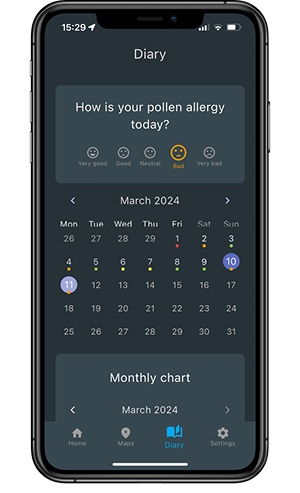
The diary offers you an opportunity to keep track of your pollen allergy. You can see your symptoms history by navigating the calendar. You can also log back in time or change an existing logging.
You log an entry by clicking on one of the smiley faces, either from the Home screen or from the Diary screen.
Consent
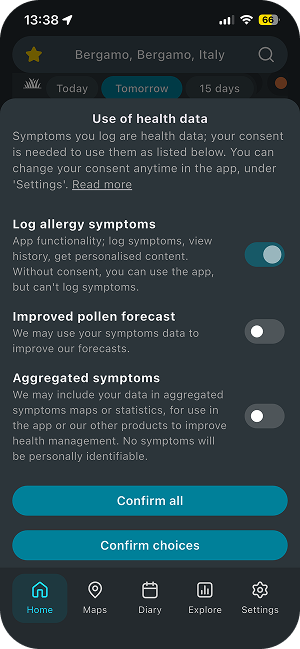
To log allergy symptoms in the diary, you need to consent to our Health Data Policy. If you have not given consent, you will see a consent prompt when you try to log a symptom. The consent is granular, meaning that you can choose to consent to one or more purposes (or none). The consents are default off.
If you do not consent to the first purpose (“Log allergy symptoms”), the two other purposes are not relevant and will be set to off.
If you have previously given consent and logged symptoms and later withdraw your consent, the symptoms you already logged will be visible (but you cannot log new symptoms).
You can change your consent any time, from Settings->Privacy and terms->Health data settings. You can read more in our Health Data Policy.
Settings
Select region
Here you can change the region, e.g. from Nordics to UK.. Please note that notifications are sent out according to your selected region.
Language
We offer several languages in our app. You can choose another language on the Settings screen.
Alerts
Alerts, or notifications, are messages displayed also when you do not use the app. On the Settings screen, you can turn on or off the different notifications we offer.
- Diary daily reminder
- Sent out around 20/8 pm if you have not logged your allergy symptom that day
- Daily pollen alert
- Sent out around 07/7 am for your favourite locations (those with a star on the Home screen) and for your selected species (on the Settings screen).
- Alerts on high pollen levels
- Sent out around 07/7 am for your favourite locations (those with a star on the Home screen) and for your selected species (on the Settings screen).
- Only sent out if pollen levels for one or more species is “high” or “Very high”.
You can control where notifications are shown in your phone’s Settings (on locked screen etc).
Login and register an account
We offer login as an option, you find login from Home, under Settings->My Account.
Creating an Airmine Pollen account by logging in will store your pollen diary entries and favourite locations in your account. (If you choose not to log in, we store this information connected to your uid, which depends on your device.)
We offer three ways of logging in:
- E-mail and password
- You will first have to press “Sign up” on the login screen and register your email and desired password
- You will then receive an email asking you to activate your account. We require this to avoid misuse of emails.
- Google email
- Just press “Continue with Google” and follow the steps
- AppleID (iOS only)
- Just press “Continue with Apple” and follow the steps
Forgotten password
Click the “Forgotten password”-button and follow the steps. We will send you an email where you can reset your password.
Please note that this is only relevant if you have logged in with the option e-mail and password (for AppleID and GoogleID, you manage your password through their systems as usual).
Delete your account
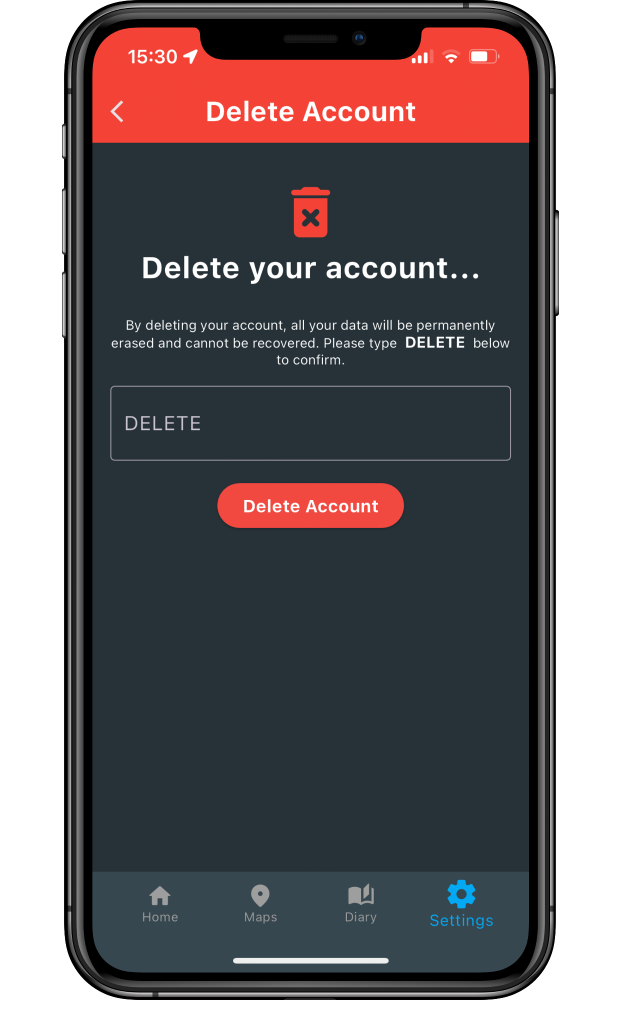
If you no longer want to use the app, or you want to make sure all personal information is erased, you can find the “Delete Account” option under the Settings->My account. When you type “DELETE” and press the Delete Account button, your personal data is deleted immediately from our systems. We delete all your personal data, such as e-mail, user id, pollen diary entries, saved favourite locations etc.
(The Airmine Pollen app itself is not deleted, but you can do this afterwards.)
Access to your user data
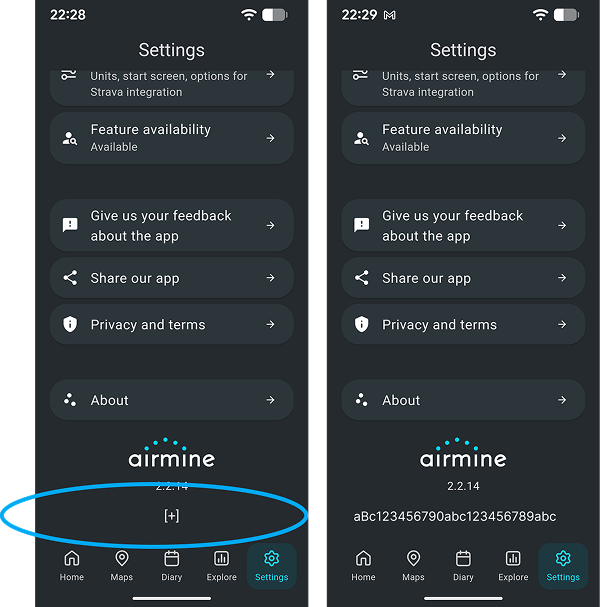
We will need your user ID to retrieve the data belonging to you. You find the user ID at the bottom of the Settings screen in the app, click on the + symbol to see it. Your user ID will look like something like the example below. Take a screenshot and include it in your email to us at the address support@airmine.ai.
We will then send you your personal data stored in our systems by email. Processing time will be 5-7 working days.
We will delete the email conversation after completing your request, to protect your privacy.
Privacy and data protection
Please see our Privacy Policy.
Questions or feedback?
Please contact us at support@airmine.ai or via our contact form. We’d love to hear from you.